




Guide to Enabling Logging on SECUI Bluemax Next Generation Firewall
In network management, logs act as a “digital footprint” that records every critical activity on security devices. Without logs, IT teams may struggle to identify the root cause of an issue or provide evidence during audits.
On Bluemax Next Generation Firewall, this feature can be enabled to support various purposes: from troubleshooting and security audits to monitoring system performance on a daily basis.
In this guide, you’ll learn step-by-step how to enable logging in Bluemax NGF.
Let’s dive in!
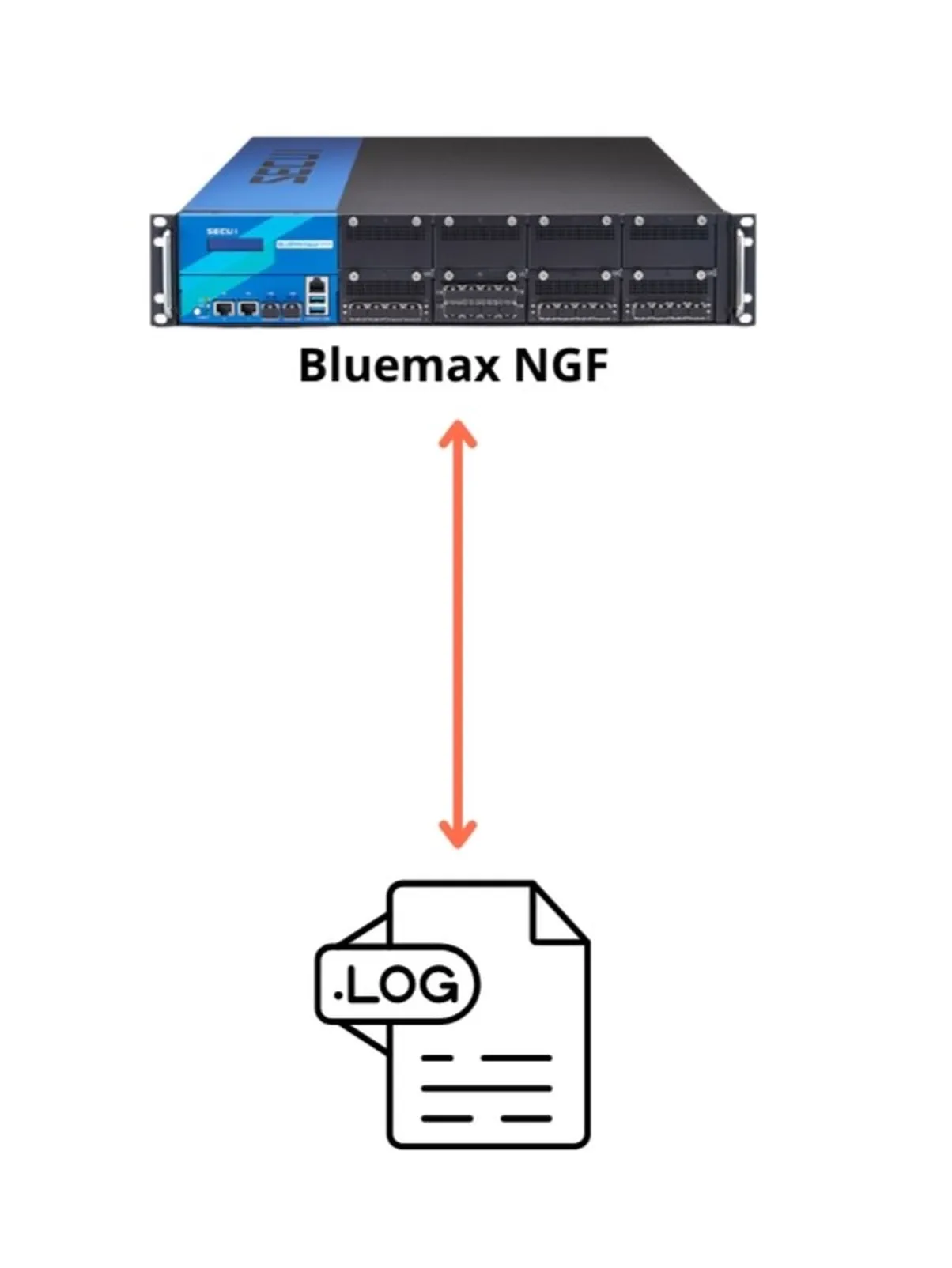
Figure 0.1 Enable Log Topology
1. Log in to Bluemax NGF Web Interface
Open your browser and access the Bluemax NGF firewall IP address. Log in using the admin account or any account with equivalent privileges.
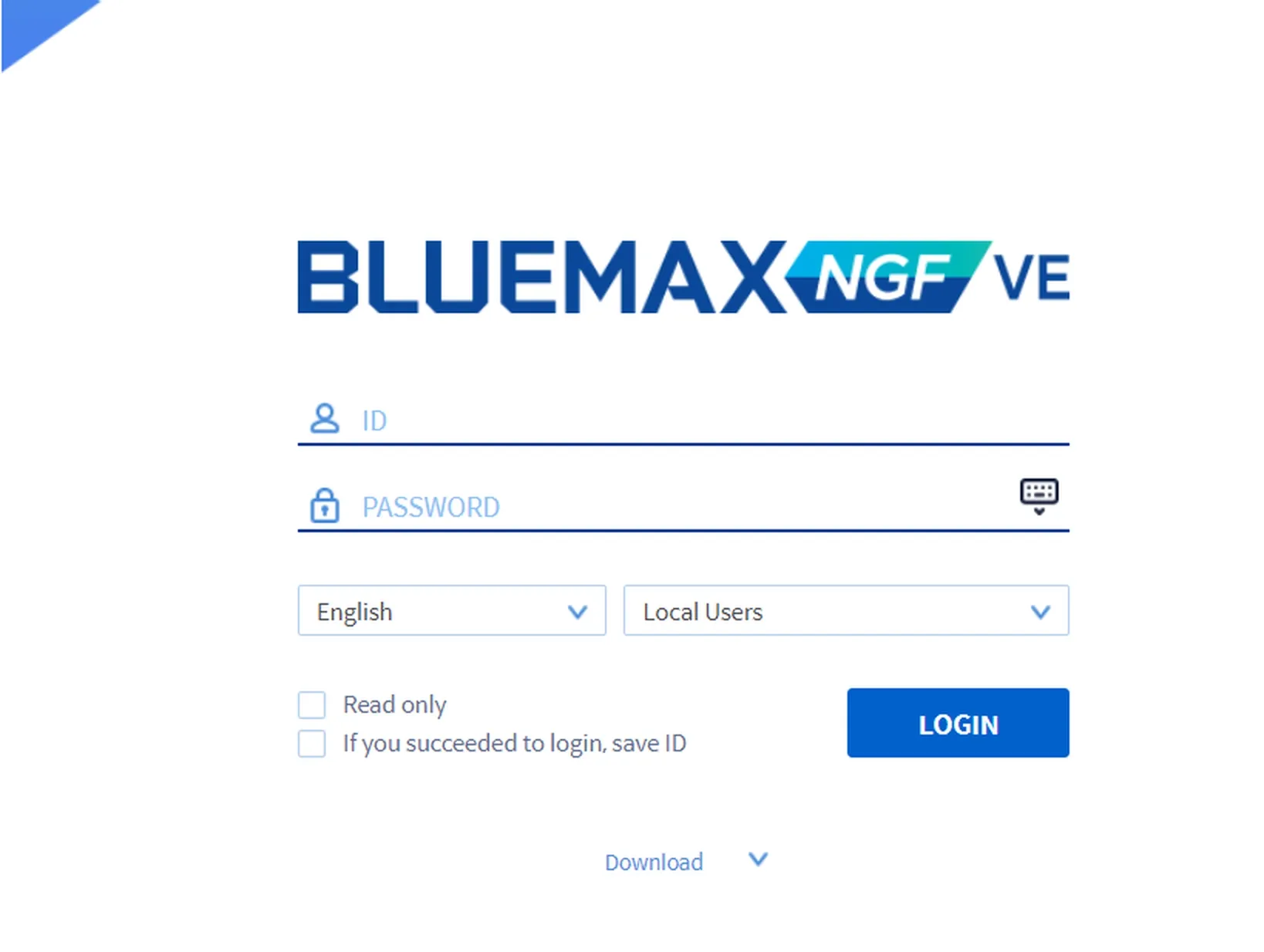
Figure 1.1 Bluemax NGF Login Page
2. Navigate to Log Setting Menu
Once you are on the dashboard, go to:
Log/Report > Log Setting
Here, you can start enabling the types of logs you want to monitor. You will see checkboxes for various logs such as NAT Session, Firewall Traffic, System Event, and more.
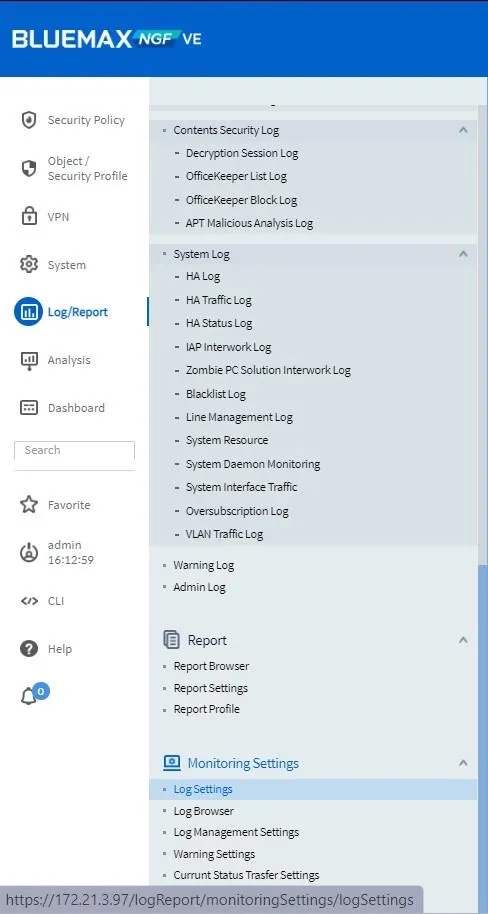
Figure 2.1 Log Setting Menu
3. Enable the Required Logs
Check all the log options you need to activate. For example:
- NAT Session Log to monitor IP translation flows
- Firewall Traffic Log to view incoming and outgoing traffic
- System Status to track interface conditions, HA, and more
After completing the selection, click Apply to save the configuration.
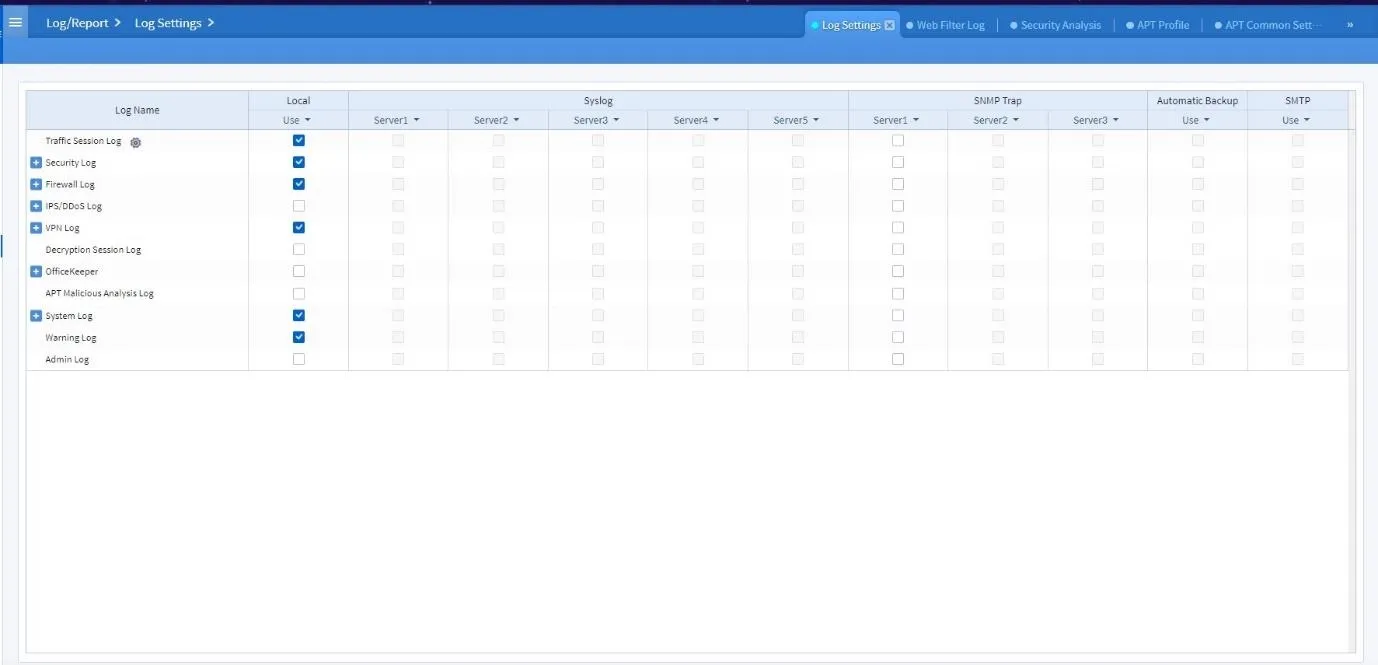
Figure 3.1 Log Checklist Setting
4. Verify Logging is Active
Check if logs are now being recorded by navigating to:
Log/Report > Traffic Session Log
You will see a list of live captured activities. If the log doesn’t appear, ensure that there is traffic and the settings are correct.
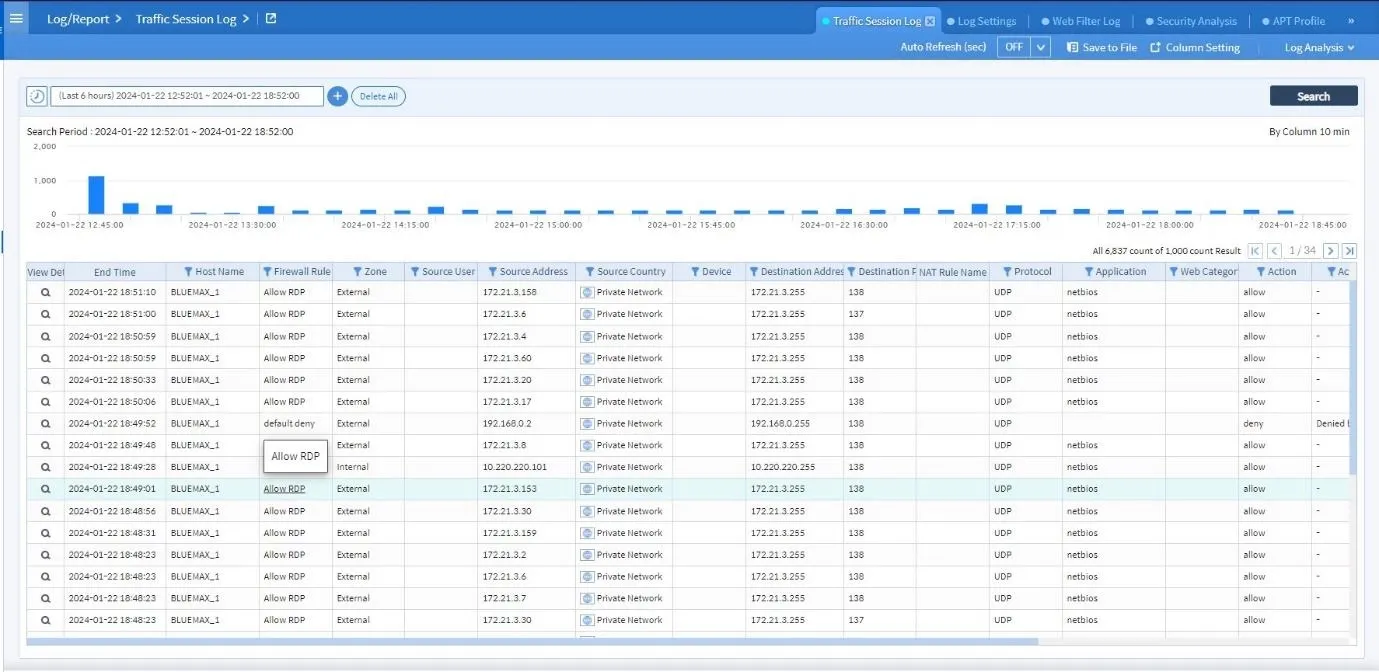
Figure 4.1 Verify Log
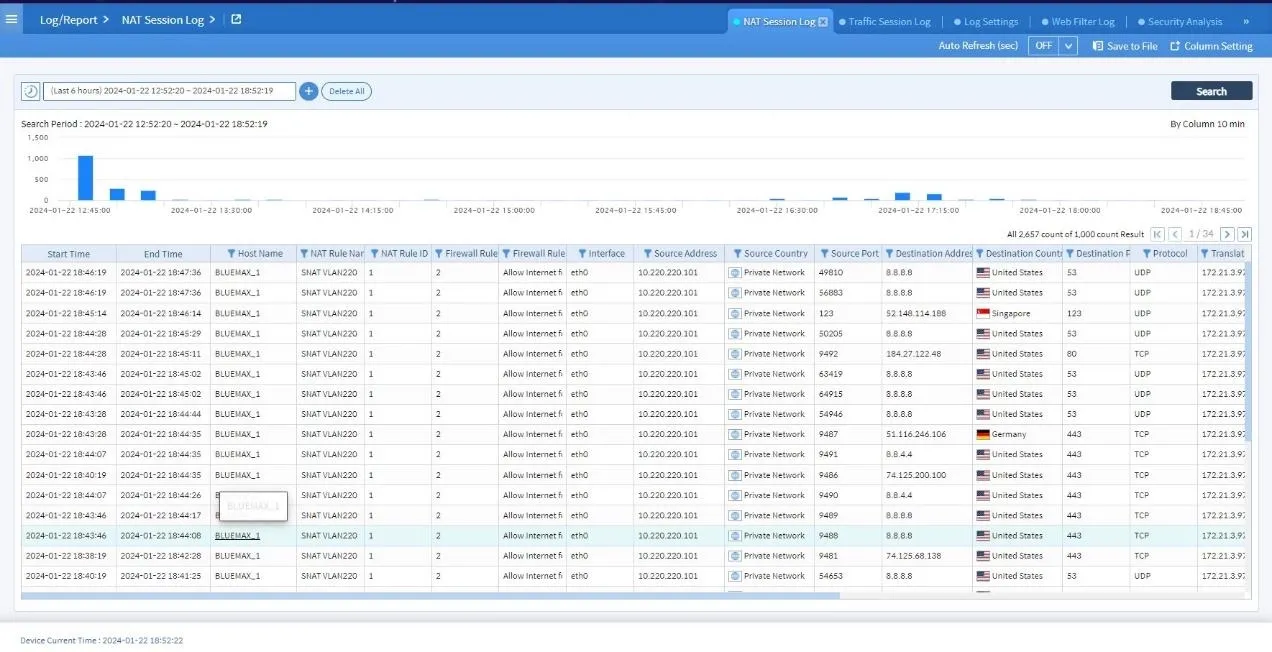
Figure 4.2 NAT Session Log
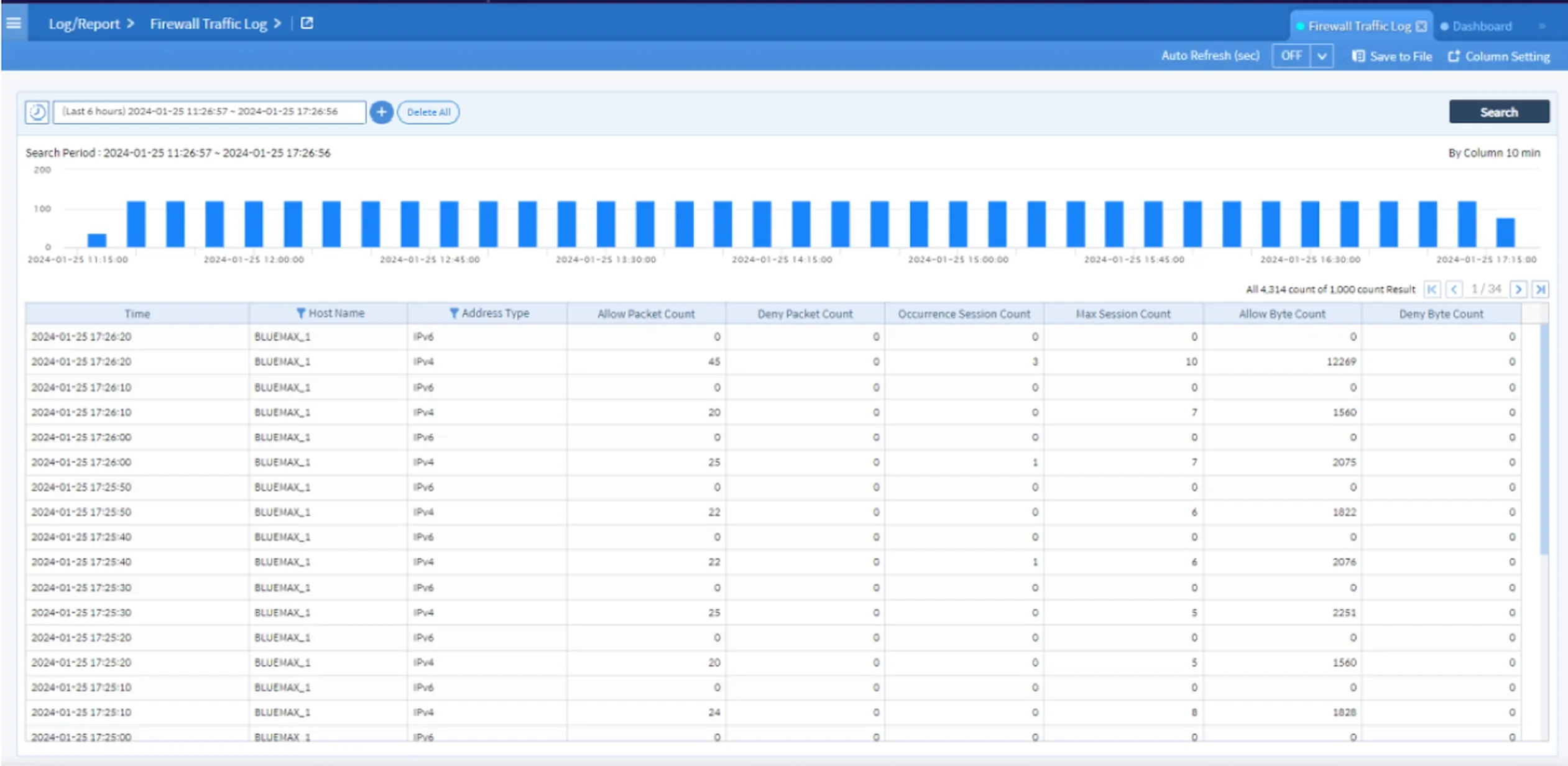
Figure 4.3 Firewall Traffic Log
5. Explore More Options in Log/Report Menu
Still in the Log/Report tab, you can access additional information such as:
- Interface status
- High Availability (HA)
- System events
- Other logs relevant to operations
This feature is extremely useful for troubleshooting or during security audits.
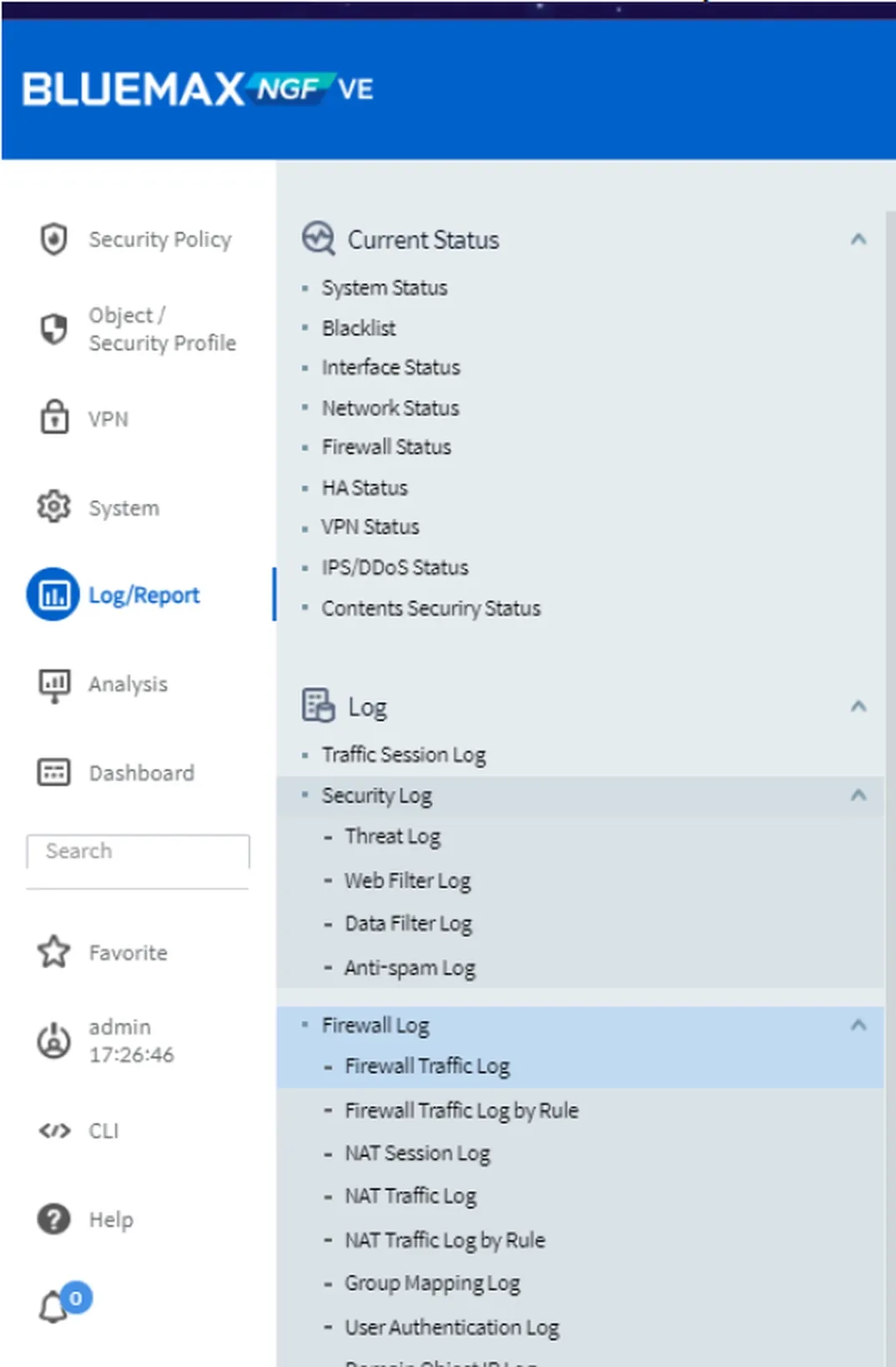
Figure 5.1 Firewall Traffic Log Menu
Conclusion
Enabling the logging feature on SECUI Bluemax NGF is a simple yet crucial step to maintain network security and visibility. Don’t wait until a problem arises — activate logging now!
Need help with log management, monitoring, or other network security solutions? Feel free to contact our team here.
Last Updated
September 26, 2025
Category
SECUI Configuration, Network Security
Share This
On This Page
Contact us for
Free Consultation!
Share your challenges, and we'll provide the best solutions for your business, Connecting with us is as simple as clicking a button, and let us come to you.